> For the complete documentation index, see [llms.txt](https://docs.kyberswap.com/llms.txt). Markdown versions of documentation pages are available by appending `.md` to page URLs; this page is available as [Markdown](https://docs.kyberswap.com/user-guide/user-guides/add-your-favourite-tokens.md).
# Add Your Favourite Tokens
Import Custom ERC20 Tokens
## Introduction
KyberSwap whitelists some of the most commonly transacted tokens on our platform, but you can also search for and specify custom ERC20 tokens to add to the KyberSwap Interface. While the screenshots below showcases adding a custom token for the standard swap flow, the interface remains largely the same across all other functions: adding liquidity, limit orders, etc.
## Importing custom tokens
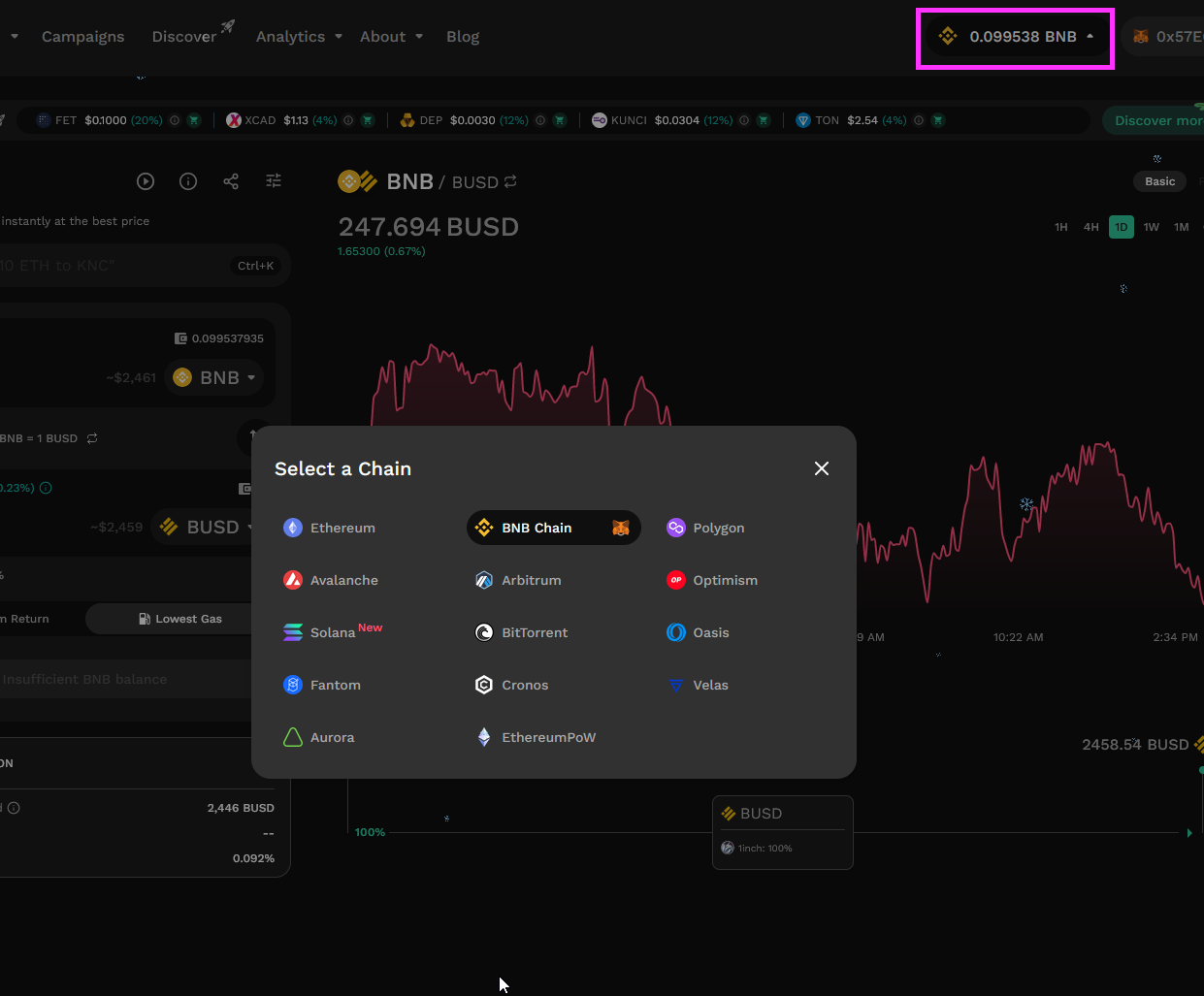
### Step 1: Select network
To start, ensure your wallet is set to the intended network. The search function is network-specific and will only return results native to that network. You can refer to [Switching Networks](/user-guide/user-guides/selecting-preferred-network.md) if you require help with changing the active network.
### Step 2: Search for token
Next, tap on either (or both) of the coin selector buttons to bring up the Token Selection screen. This screen lists all the whitelisted tokens by default, but you can use the search bar to look for a specific non-whitelisted token.
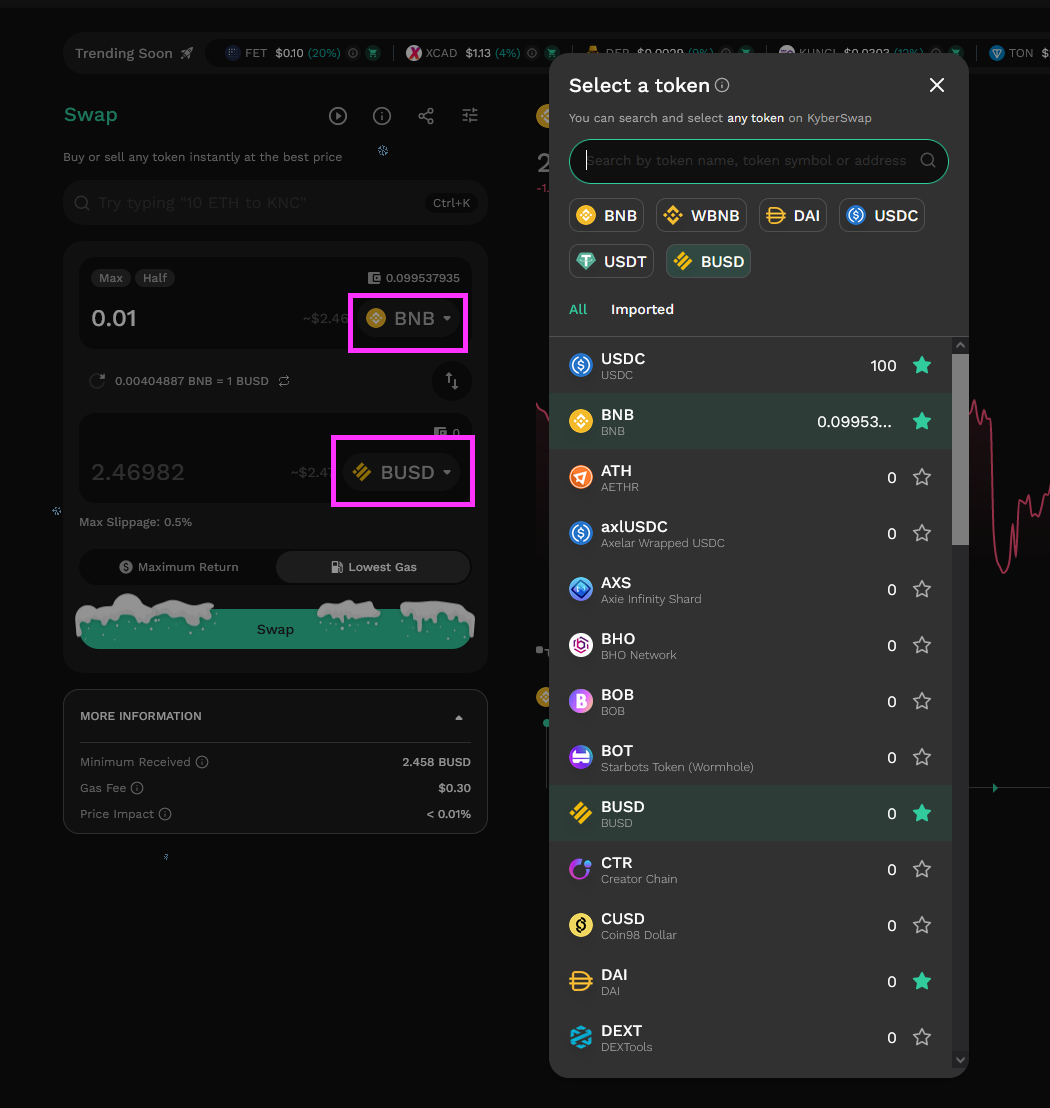
Enter either the ticker symbol or the contract address of the token you wish to import.
{% hint style="info" %}
**Importing exotic tokens**
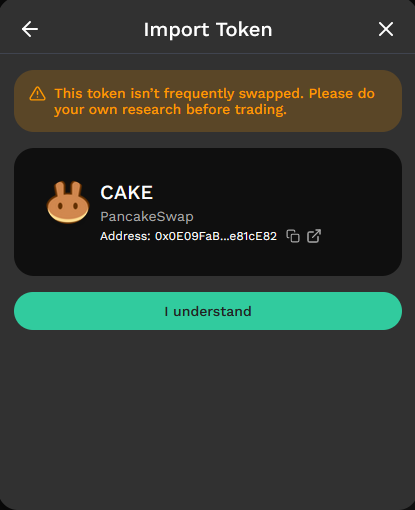
Do note that KyberSwap will display a warning if you try to add less frequently swapped tokens. This is because such tokens usually has limited liquidity which could result in negative outcomes due to greater [slippage](/getting-started/foundational-topics/decentralized-finance/slippage.md) and [price impact](/getting-started/foundational-topics/decentralized-finance/price-impact.md) risks.
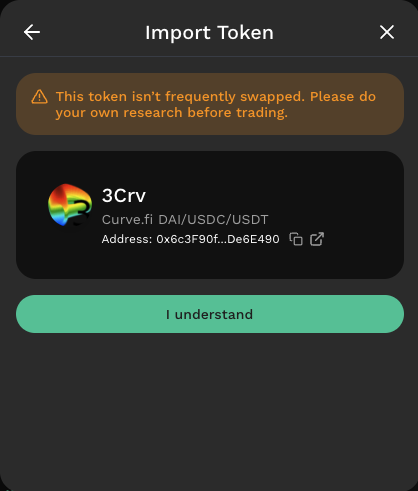 Users are advised to proceed carefully when trading such exotic tokens as changing market conditions can significantly impact the outcome of a trade. It is highly recommended that users safeguard their transactions by using KyberSwap's [Max Slippage](https://github.com/KyberNetwork/kyberswap-documentation/blob/main/kyberswap-solutions/kyberswap-interface/user-guides/broken-reference/README.md) feature when trading exotic tokens.
{% endhint %}
### Step 3: Import token
Once you have found the intended token, tap on the Import button and the “I Understand” confirmation button that subsequently appears.
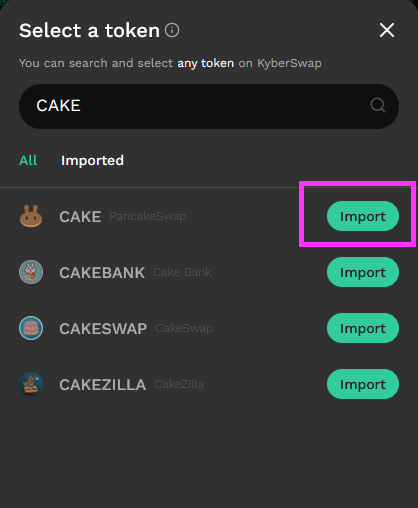
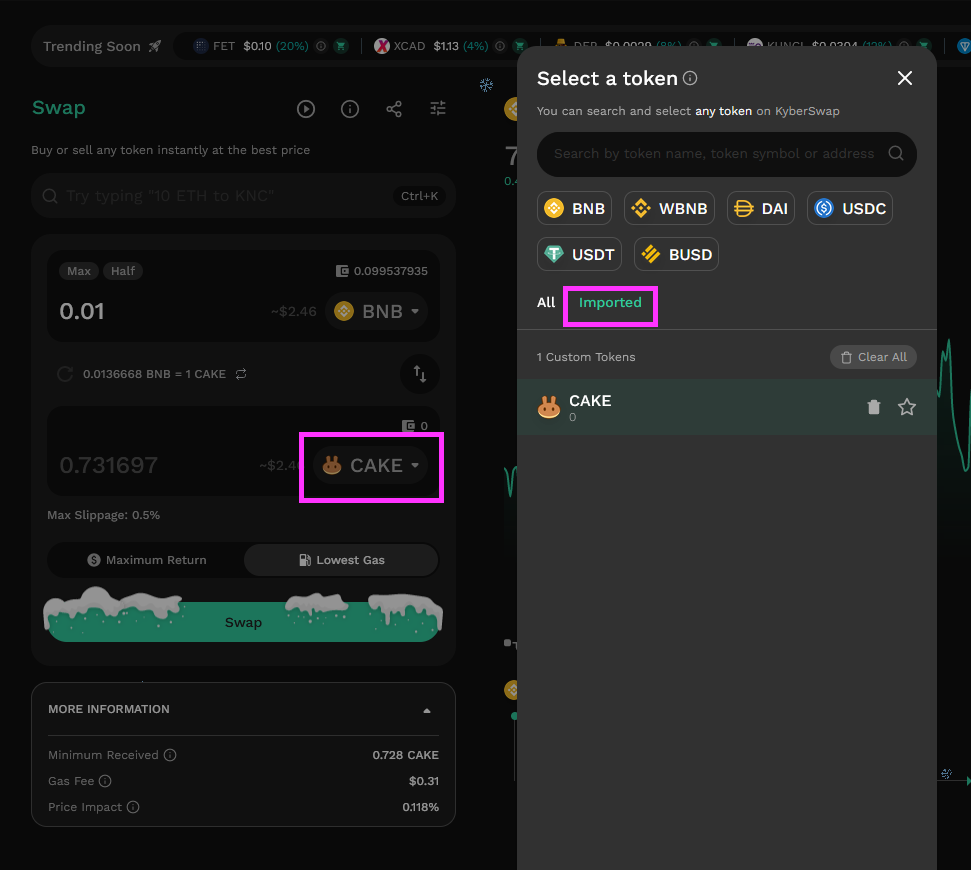
The new custom token has now been imported. It will appear under your Imported tokens list in the coin selector screen and you will now be able to perform swaps using this token.
---
# Agent Instructions
This documentation is published with GitBook. GitBook is the documentation platform designed so that both humans and AI agents can read, navigate, and reason over technical content effectively. Learn more at gitbook.com.
## Querying This Documentation
If you need additional information that is not directly available in this page, you can query the documentation by asking a question.
Perform an HTTP GET request on the following URL with the `ask` and `goal` query parameters:
```
GET https://docs.kyberswap.com/user-guide/user-guides/add-your-favourite-tokens.md?ask=&goal=
```
`ask` is the immediate question: it should be specific, self-contained, and written in natural language.
`goal` is what the user is ultimately trying to achieve, the reason they need the answer. Sharing it helps GitBook give you a better, more relevant answer. A goal is most helpful when it describes the outcome the user wants rather than restating the question. For example, with `ask=how do I create an API token`, a goal like `automate deployments from our CI pipeline` lets GitBook tailor the answer to that use case.
The response will contain a direct answer to the question and relevant excerpts and sources from the documentation.
Use this mechanism when the answer is not explicitly present in the current page, you need clarification or additional context, or you want to retrieve related documentation sections.
Users are advised to proceed carefully when trading such exotic tokens as changing market conditions can significantly impact the outcome of a trade. It is highly recommended that users safeguard their transactions by using KyberSwap's [Max Slippage](https://github.com/KyberNetwork/kyberswap-documentation/blob/main/kyberswap-solutions/kyberswap-interface/user-guides/broken-reference/README.md) feature when trading exotic tokens.
{% endhint %}
### Step 3: Import token
Once you have found the intended token, tap on the Import button and the “I Understand” confirmation button that subsequently appears.


The new custom token has now been imported. It will appear under your Imported tokens list in the coin selector screen and you will now be able to perform swaps using this token.

---
# Agent Instructions
This documentation is published with GitBook. GitBook is the documentation platform designed so that both humans and AI agents can read, navigate, and reason over technical content effectively. Learn more at gitbook.com.
## Querying This Documentation
If you need additional information that is not directly available in this page, you can query the documentation by asking a question.
Perform an HTTP GET request on the following URL with the `ask` and `goal` query parameters:
```
GET https://docs.kyberswap.com/user-guide/user-guides/add-your-favourite-tokens.md?ask=&goal=
```
`ask` is the immediate question: it should be specific, self-contained, and written in natural language.
`goal` is what the user is ultimately trying to achieve, the reason they need the answer. Sharing it helps GitBook give you a better, more relevant answer. A goal is most helpful when it describes the outcome the user wants rather than restating the question. For example, with `ask=how do I create an API token`, a goal like `automate deployments from our CI pipeline` lets GitBook tailor the answer to that use case.
The response will contain a direct answer to the question and relevant excerpts and sources from the documentation.
Use this mechanism when the answer is not explicitly present in the current page, you need clarification or additional context, or you want to retrieve related documentation sections.